HubSpot Integration Setup Guide
This guide will walk you through connecting Enrichley with your HubSpot account, allowing you to import and export contacts, companies, and lists between the two platforms.
1Install the App
Step 1: Navigate to the HubSpot Integration
Log in to your Enrichley account and navigate to the Integrations page. You'll see the HubSpot integration card. Click the Connect button to begin.

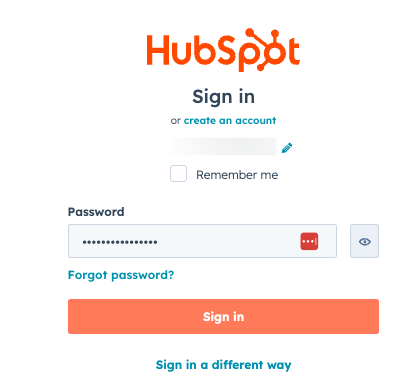
Step 2: Sign in to HubSpot
You'll be redirected to HubSpot's login page. Enter your HubSpot credentials to sign in.
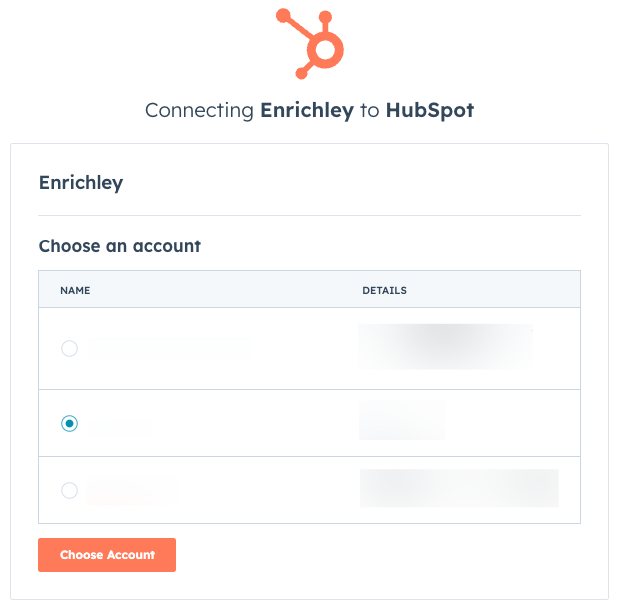
Step 3: Choose Your HubSpot Account
If you have access to multiple HubSpot accounts, select the account you want to connect with Enrichley and click Choose Account.
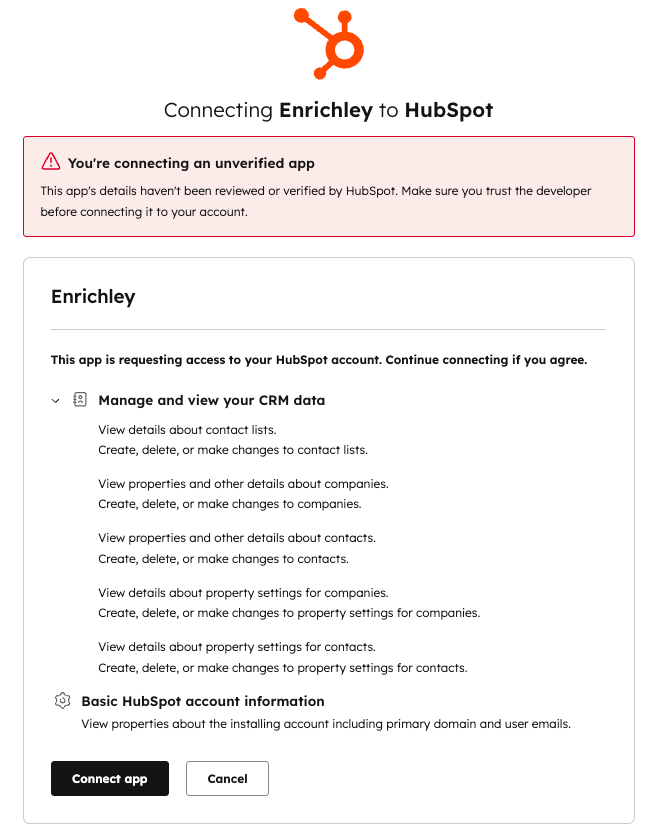
Step 4: Review and Approve Permissions
Review the permissions Enrichley is requesting. These permissions allow Enrichley to read and write contact and company data so you can import and export between the platforms. Click Connect app to approve.
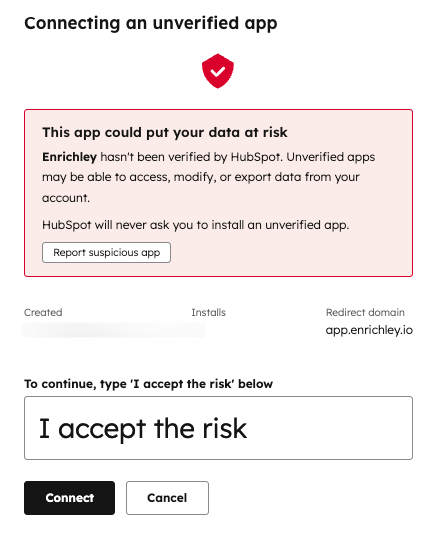
Step 5: Acknowledge Unverified App Warning
Since Enrichley is currently awaiting HubSpot marketplace verification, you'll see an unverified app warning. Type "I accept the risk" in the text field and click Connect to proceed.
Note: This warning will be removed once Enrichley completes HubSpot's marketplace verification process.
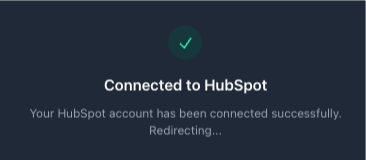
Step 6: Connection Successful
You'll see a success message confirming your HubSpot account has been connected. You'll be automatically redirected back to Enrichley.
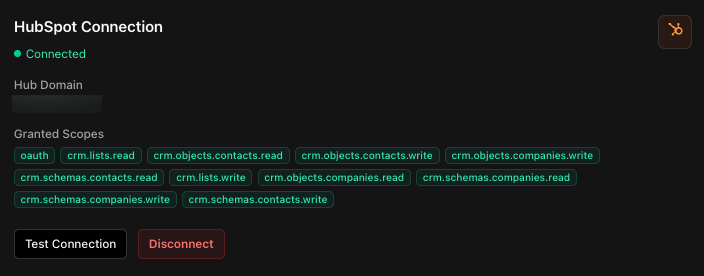
Verify Your Connection
Once connected, you can view your connection status on the HubSpot integration page. You'll see your Hub Domain and the granted scopes.
2Using the Integration
Once connected, you can use the HubSpot integration to move data between Enrichley and HubSpot.
Import from HubSpot
Import your HubSpot data into Enrichley for enrichment and verification. You can import:
- Contacts: import contact records from your HubSpot CRM
- Companies: import company records from your HubSpot CRM
- Lists: import specific contact lists from HubSpot
Export to HubSpot
Push enriched and verified data from Enrichley back to your HubSpot CRM. Export verified email addresses, enriched contact information, and updated company data directly to HubSpot.
Note: All import and export operations are manual. There are no automated syncs, so you control when data moves between Enrichley and HubSpot.
3Disconnect the App
You can disconnect your HubSpot account from Enrichley at any time. Disconnecting will remove the ability to import or export data between the platforms, but it will not affect your HubSpot data in any way.
To Disconnect HubSpot
- Navigate to the HubSpot integration page in Enrichley
- Click the Disconnect button
- Confirm the disconnection when prompted
Delete HubSpot Integration Data
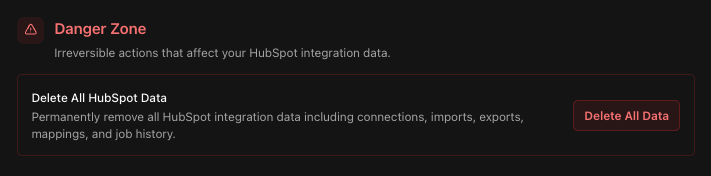
If you want to remove all HubSpot integration data from Enrichley (including connections, imports, exports, mappings, and job history), you can use the Delete All Data option in the Danger Zone section.
Important: Deleting HubSpot data from Enrichley does not alter your HubSpot account in any way. It only removes the integration data stored within Enrichley.
4Uninstall the App
If you need to completely uninstall Enrichley from your HubSpot account, you can do so from within HubSpot's settings.
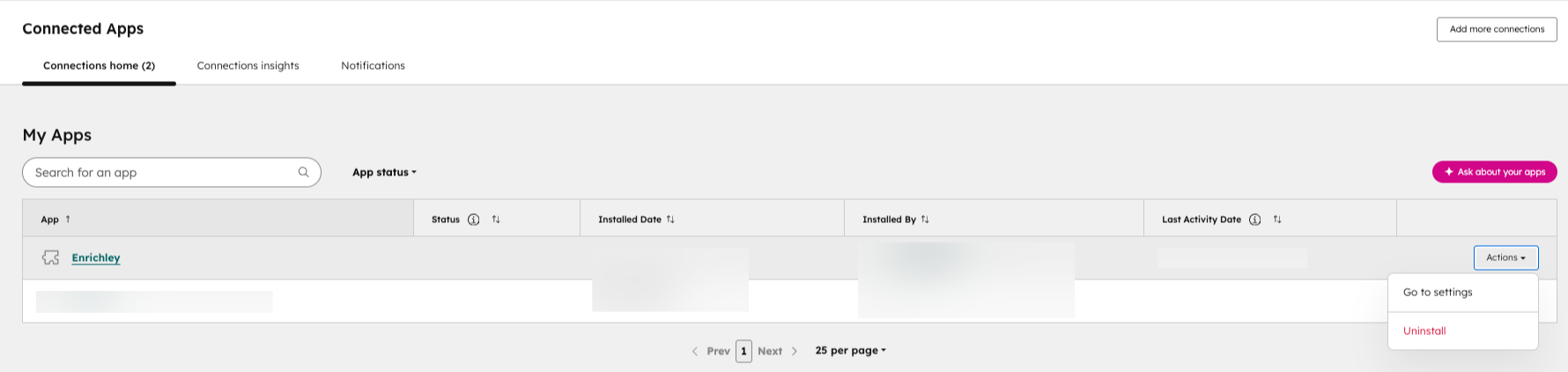
To Uninstall Enrichley from HubSpot
- Open HubSpot and navigate to Settings
- Go to Integrations → Connected Apps
- Find Enrichley in your list of connected apps
- Click the Actions dropdown menu
- Select Uninstall
Good to know: Uninstalling Enrichley will not affect your HubSpot data in any way. If you wish to reinstall Enrichley, you can reconnect at any time by following the setup guide above.
Need Help?
If you have any questions about the HubSpot integration or need assistance, please contact our support team: